

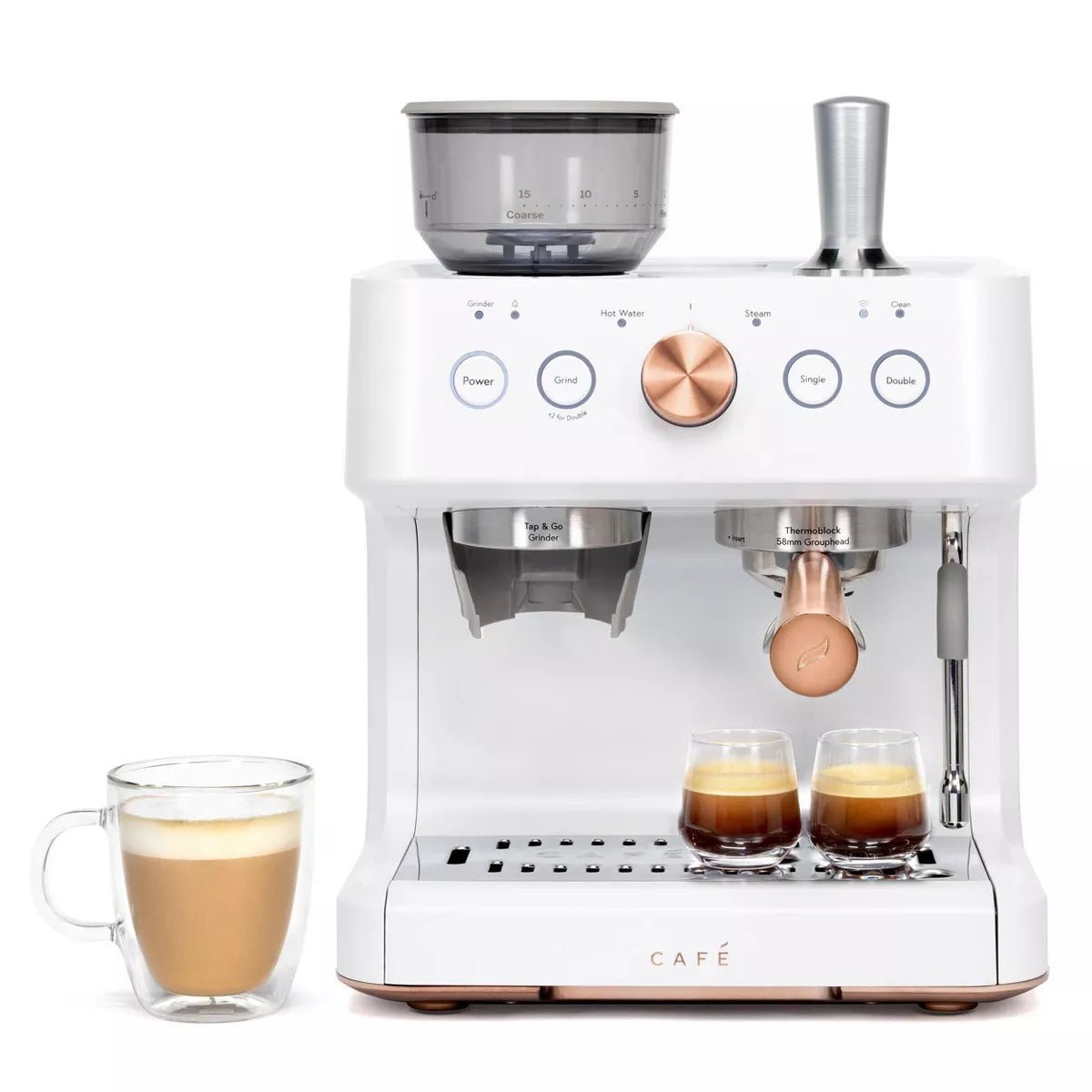
The Café Bellissimo is a semi-automatic espresso machine by Café Appliances (GE Appliances) built for home baristas who want hands-on control without sourcing a separate grinder. The built-in conical burr grinder with 15 grind settings grinds directly into the portafilter, and the 58mm portafilter with professional dose capacity gives you genuine espresso control. It's WiFi-connected via the SmartHQ app and includes a 180°-rotating steam wand for milk frothing. This guide covers everything: first use, the dial-in process, grinder adjustment, SmartHQ setup, milk frothing, cleaning, and troubleshooting.
View the Café Bellissimo at Altohaus →
What's in the Box
- Café Bellissimo espresso machine (Matte White)
- 58mm portafilter
- Single shot filter (13–15g capacity)
- Double shot filter (18–20g capacity)
- Double-layer filter
- Steel tamper (brushed stainless)
- Brushed stainless frothing pitcher
- Water hardness test kit
- Cleaning brush
- Owner's manual
Key Specifications
| Brand | Café Appliances (GE Appliances) |
| Type | Semi-automatic espresso machine with built-in grinder |
| Pump pressure | 15-bar Italian pump |
| Portafilter size | 58mm (commercial standard) |
| Built-in grinder | Conical burr grinder, grinds directly into portafilter |
| Grind settings | 15 levels (coarsest to finest) |
| Bean hopper capacity | 10 oz |
| Water reservoir | 95 oz (removable with built-in handle) |
| Preheat time | Under 80 seconds |
| Steam wand | Yes — rotates 180° for positioning flexibility |
| WiFi connected | Yes — SmartHQ app (iOS and Android) |
| Auto shutoff | 20 minutes |
| Warranty | 1-year limited manufacturer warranty |
| Support | cafeappliances.com/support / 1-800-952-5539 |
Control Panel Overview
- Power button — turns the machine on; press to wake from standby (control knob must be in neutral position)
- Grind button — activates the built-in grinder to grind into the portafilter
- Single button — brews a single espresso shot (13–15g dose)
- Double button — brews a double espresso shot (18–20g dose)
- Control knob — rotates to select Steam or Hot Water functions
- WiFi indicator — shows WiFi connection status
- Clean indicator — illuminates when descaling is needed
- Grinder indicator — shows grinder status; red = error (see troubleshooting)
First Use: Setting Up Your Café Bellissimo
- Test your water hardness using the included test kit. Enter the results in the SmartHQ app to calibrate your descaling schedule.
- Fill the water reservoir to the MAX line with fresh cold water. Use the built-in handle to carry and insert it.
- Add whole coffee beans to the 10 oz bean hopper. Do not add pre-ground coffee — it will jam the grinder.
- Power on and wait for the machine to preheat — under 80 seconds.
- Prime the machine — insert the portafilter without coffee and press Single to run a flush cycle. Discard the output. Repeat once more. The machine is primed.
- Preheat your cup by pressing Hot Water (control knob to Hot Water position) and filling your cup with hot water. Discard before brewing.
Using the Built-In Grinder
The Bellissimo's conical burr grinder grinds directly into the portafilter — no transfer needed. Here's how to grind:
- Push the appropriate filter (single or double) into the portafilter until it clicks into place
- Place the portafilter in the grinder cradle beneath the grinder chute
- Press the Grind button — the grinder will run for the programmed dose duration
- When grinding is complete, remove the portafilter
- Gently tap the sides of the portafilter to level the coffee distribution
- Tamp firmly and evenly with the included steel tamper — align the tamper edge with the portafilter edge
- Wipe excess grounds from the portafilter rim
Adjusting Grind Size — 15 Settings
The Bellissimo has 15 grind levels — 1 is finest, 15 is coarsest. The manufacturer recommends starting at setting 7–9 as a baseline and adjusting from there based on taste and brew time.
- Finer grind (lower number) — slower extraction, more intense, stronger flavor. Use if shots taste sour or weak.
- Coarser grind (higher number) — faster extraction, lighter body. Use if shots taste bitter or over-extracted.
To adjust grind size, refer to the grinder adjustment controls on the machine (typically a dial or knob near the hopper). Adjust during an active grind cycle for immediate effect. Change one step at a time and allow 2 shots before evaluating.
How to Brew Espresso
- Power on and allow the machine to preheat (under 80 seconds)
- Grind your coffee directly into the portafilter (see grinder section above)
- Tamp firmly — consistent tamping is critical for consistent shots. Aim for even, level pressure
- Insert the portafilter into the group head at a 45° angle, then twist right to lock. Note: some resistance during installation is normal. If it's very hard to insert, your dose may be too large
- Place your cup under the spout
- Press Single or Double to begin extraction
- Target brew time: 20–40 seconds from when the function starts to when espresso stops flowing
- Serve immediately
Dialing In Your Espresso
The Bellissimo is designed for home baristas who want to dial in their shots. Here's the official dial-in process:
- Start at grind setting 7–9 (manufacturer recommendation)
- Grind and weigh — 18–20g for a double, 13–15g for a single
- Tap the portafilter to level grounds, tamp firmly and evenly
- Brew and time the shot — target 20–40 seconds
- Weigh the output — note your brew ratio (grams in vs grams out)
-
Taste and adjust:
- Shot tastes bitter or over-extracted → go one step coarser or reduce dose
- Shot tastes sour, weak, or watery → go one step finer or increase dose
- Shot time under 20 seconds → go finer
- Shot time over 40 seconds → go coarser
- Change one variable at a time. Once dialed in, record your settings for that bean — repeat results are straightforward from there
SmartHQ App — WiFi Setup and Features
The Café Bellissimo is WiFi-connected via GE Appliances' SmartHQ app. Like the Affetto, it runs on the same platform.
Connecting to WiFi
- Download the SmartHQ app from the App Store or Google Play
- Sign in or create a GE Appliances account
- Press the Plus (+) in the app → Add an Appliance
- On the machine, press and hold the Single and Double buttons simultaneously for 3 seconds — the machine will beep and the WiFi LED will flash
- Follow the in-app instructions. The WiFi password is on the label on the back of the machine under the water tank
- Once connected, the app confirms the connection
Note: Connecting may take multiple attempts. If using an Android device, disable "Smart Network Switch" or similar auto-network features during setup.
What SmartHQ Does on the Bellissimo
- Customize espresso volume and strength for Single and Double buttons
- Adjust hot water volume and temperature
- Set water hardness level for calibrated descaling alerts
- High altitude settings adjustment
- Maintenance alerts — descaling reminders and cleaning notifications
- Software updates
Sound and Factory Reset
- Turn off sounds: press and hold Single + Grind simultaneously for 3 seconds
- Factory reset: press and hold Grind + Single + Double simultaneously for 3 seconds — resets all programmable settings to factory defaults
Frothing Milk with the Steam Wand
- Brew your espresso first — the machine requires higher temperature for steam and brewing immediately after steaming affects shot quality
- Rotate the steam wand to your preferred position — it pivots 180° for convenience
- Turn the control knob to Steam. The wand may purge hot water while preheating — don't insert into milk until it's producing steam
- Fill the frothing pitcher with cold milk — higher fat content produces creamier, thicker foam
- Place the steam tip just below the milk surface at approximately 45° to create a vortex
- Start steaming — the longer the tip stays just below the surface, the more microfoam is created. Once desired foam is reached, dip deeper into the milk to reach temperature
- When the bottom of the pitcher is warm to the point of discomfort, the milk is ready
- Turn the knob to neutral to stop steam
- Wipe the steam wand immediately with a hot, damp cloth, then purge briefly to clear residual milk
Cleaning & Maintenance
After Every Use
- Rinse portafilter and filters with warm water; allow to dry completely
- Wipe steam wand with a hot, damp cloth immediately after use; purge briefly
- Empty and rinse the drip tray
- Wipe machine exterior with a damp cloth
Cleaning the Grinder
Use the provided cleaning brush to clear coffee grounds from the grinder chute and burrs regularly. A buildup of grounds — especially from oily beans — is the most common cause of grinder errors and locked rotor alerts.
System Emptying (Long-Term Storage)
If storing the machine for an extended period, empty the water system first:
- Empty the water tank
- Press and hold Power + Double simultaneously for 3 seconds — the machine beeps once and both buttons flash
- The system empties water into the drip tray and returns to idle when complete
Descaling
The Clean indicator illuminates when descaling is needed — triggered automatically based on your water hardness setting in the SmartHQ app. Use a descaling solution recommended for espresso machines and follow the full descaling procedure in the owner's manual.
Troubleshooting Common Issues
Machine doesn't turn on / no response
Check the power connection. Ensure the control knob is in the neutral position before pressing Power — the machine won't wake from standby if the knob is set to Steam or Hot Water.
Grinder indicator flashing red
The grinder is locked or blocked — usually caused by a foreign object or oily bean buildup. Turn off the machine and clear the grinder with the provided brush. Power back on and retry. If the error persists, contact Café support.
Grinder indicator flashing white
The grinder has been running for 3+ minutes and needs to cool down for 6 minutes. Wait for the indicator to clear before resuming use.
Coffee doesn't come out / very slow flow
Grind is too fine, dose too high, or tamp too firm. Go one step coarser, reduce your dose slightly, or tamp with less pressure. If the portafilter was difficult to install, the dose was likely too large.
Coffee tastes watery
Grind is too coarse. Adjust one step finer and evaluate after 2 shots. Check that you're using the correct dose for your filter (13–15g single, 18–20g double).
Shot has no crema
Beans may be stale or grind is too coarse. Use freshly roasted beans (within 4 weeks) and try a finer grind setting.
Machine takes too long to heat up
Descaling may be overdue — scale buildup slows heating. Run the Clean indicator descaling cycle. Also ensure the water tank is full before powering on.
Portafilter is too hard to insert
The dose is too large and grounds are contacting the group head. Remove a small amount of coffee or switch to a lower dosage. Ensure you're inserting at a 45° angle before twisting to lock.
Official Café Appliances Resources
- Café Bellissimo Owner's Manual — ManualsLib — full PDF manual with diagrams
- GE Appliances Product Support — Bellissimo — owner's manual, FAQs, and support
- Café Espresso Machine Use & Care Tips — official brewing and maintenance tips
- SmartHQ App Connection Guide — official WiFi setup instructions
- Café Appliances Customer Support: 1-800-952-5539
- SmartHQ / Connected Home Support: 1-800-220-6899 (Mon–Fri 9am–9pm ET, Sat 9am–3pm ET)
- Download SmartHQ: Available on the App Store and Google Play
Warranty Information
The Café Bellissimo is covered by a 1-year limited manufacturer's warranty. Register your appliance and manage warranty claims at cafeappliances.com/support or by calling 1-800-952-5539.
For questions about your Altohaus order, contact us at support@altohaus.co.
Pair It With
- Coffee scale — the Bellissimo rewards precise dosing. Weigh your grounds for consistent results. Browse scales →
- Quality whole bean coffee — with 15 grind settings and a 58mm portafilter, the Bellissimo can extract quality beans to their fullest. Fresh specialty beans make a noticeable difference.
Shop the Café Bellissimo at Altohaus →
Frequently Asked Questions
What makes the Café Bellissimo different from the Café Affetto?
The Bellissimo is semi-automatic — you grind, dose, tamp, and control the extraction manually, which gives you far more control over your shot. The Affetto is fully automatic — press a button and the machine does everything. The Bellissimo has 15 grind settings vs 5 on the Affetto, a larger 58mm portafilter (vs the Affetto's smaller one), a 95 oz water tank (vs the Affetto's standard reservoir), and is designed for users who want to dial in their espresso rather than just press a button.
Can I use pre-ground coffee in the Café Bellissimo?
No — the Bellissimo uses whole beans only. The built-in grinder is designed to grind fresh for each shot. Adding pre-ground coffee to the bean hopper will damage the grinder.
What grind setting should I start at?
Start at setting 7–9 (the manufacturer's recommended starting point). Pull a shot, time it (target 20–40 seconds), taste it, and adjust one step at a time. Finer for more intensity, coarser if the shot is bitter or over-extracted.
How do I connect the Café Bellissimo to WiFi?
Press and hold Single + Double simultaneously for 3 seconds to activate pairing mode. Follow the setup steps in the SmartHQ app. The WiFi password is on the label on the back of the machine under the water tank. If connection fails, ensure your phone is on a 2.4GHz network during setup.
What does the red grinder indicator mean?
The grinder is locked or blocked. Turn the machine off, clear the grinder with the provided brush, and power back on. If it persists, the grinder may have encountered a foreign object — contact Café Appliances support.
How do I know when to descale?
The Clean indicator on the control panel illuminates when descaling is needed. You can also set your water hardness in the SmartHQ app, which calibrates the descaling alert to your actual water conditions.
What brew ratio should I use?
Start with 1:2 — 18g of coffee in, 36g of espresso out for a double shot. Adjust based on taste: a longer ratio (1:2.5) produces a lighter, more delicate shot; shorter (1:1.5) produces a more concentrated ristretto-style shot. The SmartHQ app lets you customize these volumes.
Share:
Café Affetto Automatic Espresso Machine: Complete Setup, Use & Care Guide